Set a password
Add a password so you can sign in without waiting for an email link.
Accounts are created with Google or an email link, so a password is optional. Add one if you’d like a quick way to sign in that doesn’t depend on your inbox.
Open Security & sign-in
Tap your avatar to open the account menu, then go to Security & sign-in.
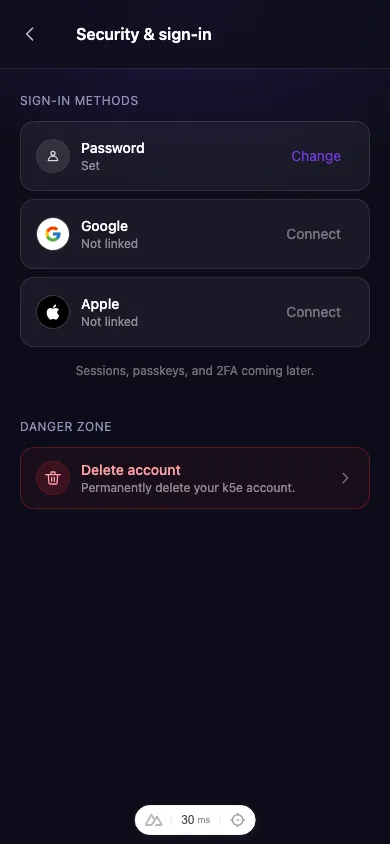
Set or change your password
Next to Password, tap Change (or Set if you don’t have one yet) and follow the prompts. Your password must be at least 12 characters.
Once it’s saved, you can sign in with your email and password from the Sign in screen by choosing Use password instead.
Connect Google or Apple
From the same screen you can link a Google or Apple account. Linking gives you another one-tap way to sign in — handy if you ever lose access to your email.
Delete your account
The Danger zone at the bottom of this screen lets you permanently delete your k5e account if you ever need to. Deletion is confirmed by email and removes your data.